I was talking recently on Twitter about how much I love the convenience of custom Photoshop actions for performing routine tasks and I had a request to do a quick blog post about how I use Photoshop actions to get my pages set up for coloring. In reading about how various cartoonists color their work, I’ve come to the conclusion that there really is no “right” way to do it. Everyone seems to have his or her own idiosyncratic way of setting up and coloring. The method I’m using here is one that I settled on after doing art for Ameila Earhart: This Broad Ocean. It’s an amalgam of techniques that’s about half stuff I came up with from just muddling through, and the other half stuff I picked up from series editor Jason Lutes. So anyway, here goes…
This Is What You Want… This Is What You Get
First, it makes sense to define what I’m starting with and what I want my end results to be:
Starting with: I’m starting off with a freshly-scanned TIFF file of my original, inked artwork. I’m scanning this at full size (13 in x 18 in) as full-color artwork at 600 dpi, which is the highest (non-interpolated) DPI my ancient scanner will handle. Here’s a sample of what that artwork looks like:
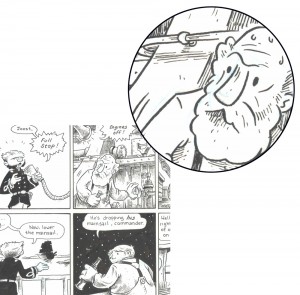 As you can see (click on it to make it bigger) the inks here are somewhat splotchy as far as how fully-black they are and in the inset there you can see that my light blue under-drawing is still quite visible.
End results: What I want once this is over are two files – a layered lower-resolution PSD file that I’ll use for coloring and a single high-res TIFF of the line art that’s been converted to just black and white pixels. (I use InDesign later to “composite” the color layer from the PSD file under the TIFF of the line art and to output a finished print-ready PDF.)
The coloring file: Here’s what I want my coloring file to be set up. (I threw some color on the color layer just so you get the idea…)
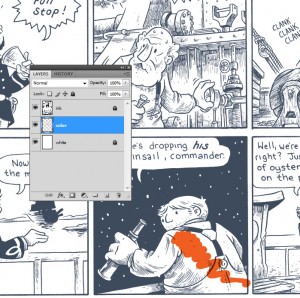
This file is 300 dpi (I use mostly flat color, so this is plenty fine resolution wise) and is actual printed size–in this case 7.5 in wide. It has three layers as you can see.
- Ink – Opacity 60%, set to Multiply, locked. (Opacity is 60% so I can see that I’m getting color under the black ink layer. This is important in some printing situations but not in others. I just go ahead and set it up like that.)
- Color – Clear, unlocked.
- White – Filled with pure white, locked.
The line art file: This is pretty straightforward. I want a 1200 dpi TIFF that’s been converted to all pure black or pure white pixels by means of Photoshop’s Threshold command.
Additionally: I want each of these files to be named appropriately and saved in the correct folders on my computer–all while preserving my original scanned file (I don’t know why I keep this file… I just do.)
The Action in Action
So obviously, doing all this setup work for every single page of a 100 pg graphic novel would be really, really tedious. So, the obvious thing is to set up a Photoshop action to do all this for me. I’ll walk you through it step-by-step. Even with all the steps expanded out in Photoshop’s actions palate there’re some settings that it doesn’t show for some reason, so I’ll note those.
First, I make sure the name of my starting TIFF is the page’s number. So, for page 25 of a book, the file is 25.tiff. That way, my resulting two files will also have the page number as their file names.
1) Resize and upsample
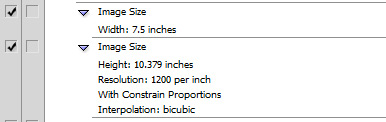 In the first step here, I change the image size from actual drawn size to the final printed size of 7.5 inches wide. It’s important that I don’t have it resample the image when it does so (you have to uncheck this in the image–>size dialog, since it’s checked by default). Basically what this does is tells Photoshop to make the image smaller, but to not throw out any pixel information when it does so. So, the printed size of the image is getting smaller, but the DPI is getting higher as a result. Imagine smushing up a loaf of Wonder bread; it gets smaller, but denser because you’ve changed the size of it but not thrown out any material.
In the next step (also in the “Image Size” dialog) all I’m doing is changing the DPI to 1200. Since the “smushed up” DPI is around 1000, what I’m doing here is called upsampling–and it’s something you usually don’t want to ever do. Basically, you’re telling Photoshop to just make up pixel information that’s not really there. Given what’s going to happen to this image in a few steps, though, we can get away with it.
2) Get rid of the blue underdrawing and change to CMYK
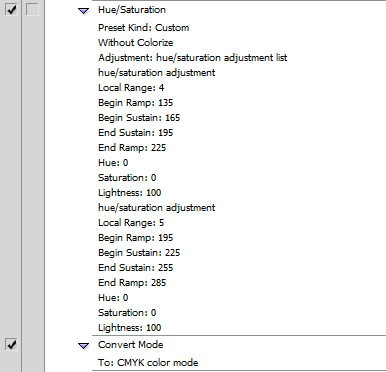 The first part here looks complicated, but really all it’s doing is going to image–>adjustments–>hue/saturation and turning the brightness of the Cyans up to 100, effectively erasing all the light blue underdrawing. Then I convert the image to CMYK since it’s (presumably) going to be printed at some point in the future.
3) Generate and save the line art TIFF
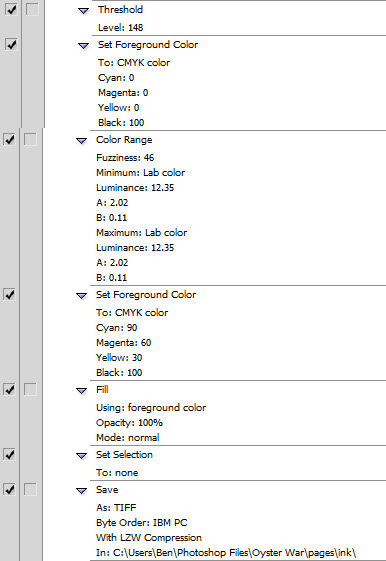 Again, this looks like a lot of complicated stuff, but it’s really not. First, I’m using the Threshold command to change everything on the page either to pure black pixels or pure white pixels. I’ve done this by eye manually with the slider enough to know that 148 is in the neighborhood of what I need to mimic my linework as it looks on the physical original page.
At this point, though, there’s a problem: when you use Threshold on a CMYK image, Photoshop changes things to CMYK black which (as you can see above) is C, M, and Y of zero… and K (black) of 100. That winds up being a murky-looking black and it’s not a good color of black to print with, so I need to change all the black on the page to what’s known as “rich black.” You can Google for more info on that, but in the step labeled “color range” above, I’m selecting all the CMYK black (which is all the black on the page at this point), then in the “set foreground color” step I’m changing the foreground color to a rich black, and finally in the “fill” step I’m replacing all that CMYK black with the rich black.
Edit: Since originally writing this post, I’ve eliminated the above step. The line art should remain as a 0/0/0/100 black, since the image winds up being “superblacked” (meaning: all areas in the color layer under the line art get filled in with a 60/40/40/0 undercolor) at the very end of the process. The 0/0/0/100 black layer over the 60/40/40/0 superblack on the color layer creates line art that’s 60/40/40/100, a “rich black.”)
In the last two steps you see here, I’m deselecting and then saving the file as it stands now as a TIFF in the “ink” subdirectory. That’s one of the two files I want to end up with. Now…
4) Start making the coloring file
 So here, I’m into the image–>size dialog again. I’ll I’ve done is change the dpi from 1200 to 300. (The whole point for me, by the way, of having a separate file to color with is that my computer will really grind to a halt if I start making Photoshop do work on a multi-layered 1200 dpi file. Maybe with some new fancy computer you wouldn’t even have to bother?) Note, though, that not only is it resampling the image here but it’s using the non-default interpolation method “nearest neighbor.” What this does is makes sure that as Photoshop changes the file it’s not anti-aliasing anything–it’s keeping all the pixels either pure black or pure white.
5) Set up coloring layers
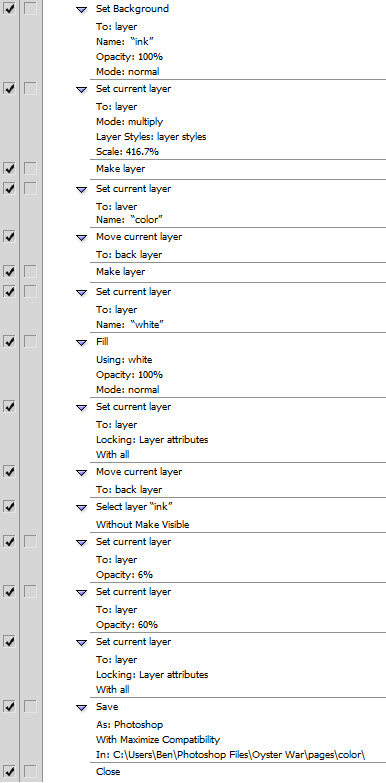 There are a lot of steps here, but all I’m doing is setting up my layers. I call the first one “ink” and set its opacity to 60% and set it to Multipy. (Looks like I made a mistake and accidentally set it to 6% first… I should delete that step.) Similarly, I’m just creating my color layer, labeling it and positioning it behind the ink layer… then making my background layer, labeling it white, filling it with white, and then moving it to the back.
Finally I save this layered file in a the “color” subdirectory and close the original scanned TIFF file. Note that when I recorded this action originally, I answered “no” when Photoshop gave me the old “do you want to save your changes” dialog. That way, my original scanned TIFF remains looking just like it looked at the beginning–and I’ve got the two other files saved in their respective folders as well.
See it go!
So, here’s what it looks like in action (you should probably click through to YouTube to see it a little bigger):
For what it’s worth, you’re welcome to download the action itself as an .ATN file that you can import into your own Photoshop actions set: OW_setup.atn. Note though that this won’t work right out of the box since the directory paths used in the “save” steps on my computer won’t match those on your own computer. (Also I’m using a 7.5 in page width, which you probably aren’t.) You can easily modify these–search for “edit Photoshop actions” and you’ll find plenty of tutorials–but you’ll probably want to build your own pre-coloring setup action yourself–one that’s particular to your own coloring method.


 You can use whatever drawing tools you find most comfortable. Personally, I feel that speed and volume of hands-drawn is far more important than laboring over each hand and trying to get them all perfect. (You can spot some real duds in the pages above, but that comes with the territory.) Accordingly, I use my favorite drawing pen, the Rotring Art Pen, and just start drawing directly in ink. As you can see, I sometimes–but not always–go in with Prismacolor marker afterwords and add some shading. Mitten hands, I CAST THEE OUT!!




Recent Comments